Excel Functions List: Lookup, Text, Date, Financial, and Logical Functions Explained
Hello everyone 📊✨ If you’ve ever felt overwhelmed by the sheer number of formulas available in Excel, you’re not alone. Mastering an Excel functions list is one of the fastest ways to boost productivity and automate repetitive tasks. From searching data to manipulating text, calculating dates, handling finances, or making logical comparisons, Excel has a function for almost everything. Today, we’ll break down essential categories like Excel lookup functions, Excel text functions, Excel date functions, Excel financial functions, and Excel logical functions so you can build a strong foundation.

1. Excel Lookup Functions for Data Retrieval
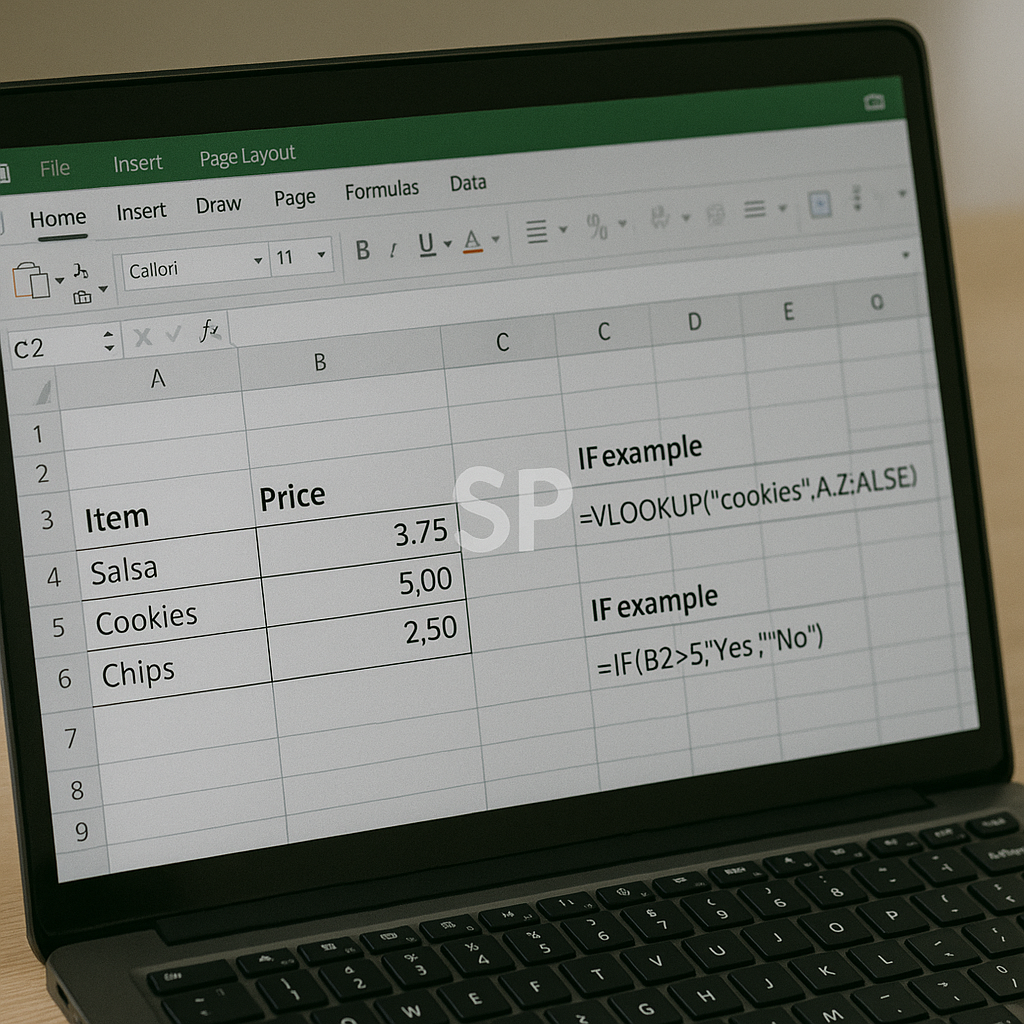
At the core of the Excel functions list are lookup functions. Excel lookup functions like VLOOKUP, HLOOKUP, INDEX, and MATCH help you search through tables and return specific values. For instance, VLOOKUP can find a product price by matching an ID, while INDEX+MATCH provides more flexibility when dealing with large datasets.
2. Excel Text Functions for Cleaning Data
Working with messy data? That’s where Excel text functions shine. Functions like LEFT, RIGHT, MID, TRIM, and CONCATENATE (or TEXTJOIN) allow you to extract, clean, and combine text values. A common example: using TRIM to remove unwanted spaces before running analytics. With these tools, data preparation becomes quicker and more reliable.
3. Excel Date Functions for Scheduling
Time management is crucial, and Excel date functions simplify calculations involving time. TODAY, NOW, EOMONTH, and DATEDIF help calculate deadlines, monthly reports, or the age of entries. For example, EOMONTH is ideal for forecasting end-of-month balances, while DATEDIF can quickly calculate someone’s tenure in years, months, and days.
4. Excel Financial Functions for Planning
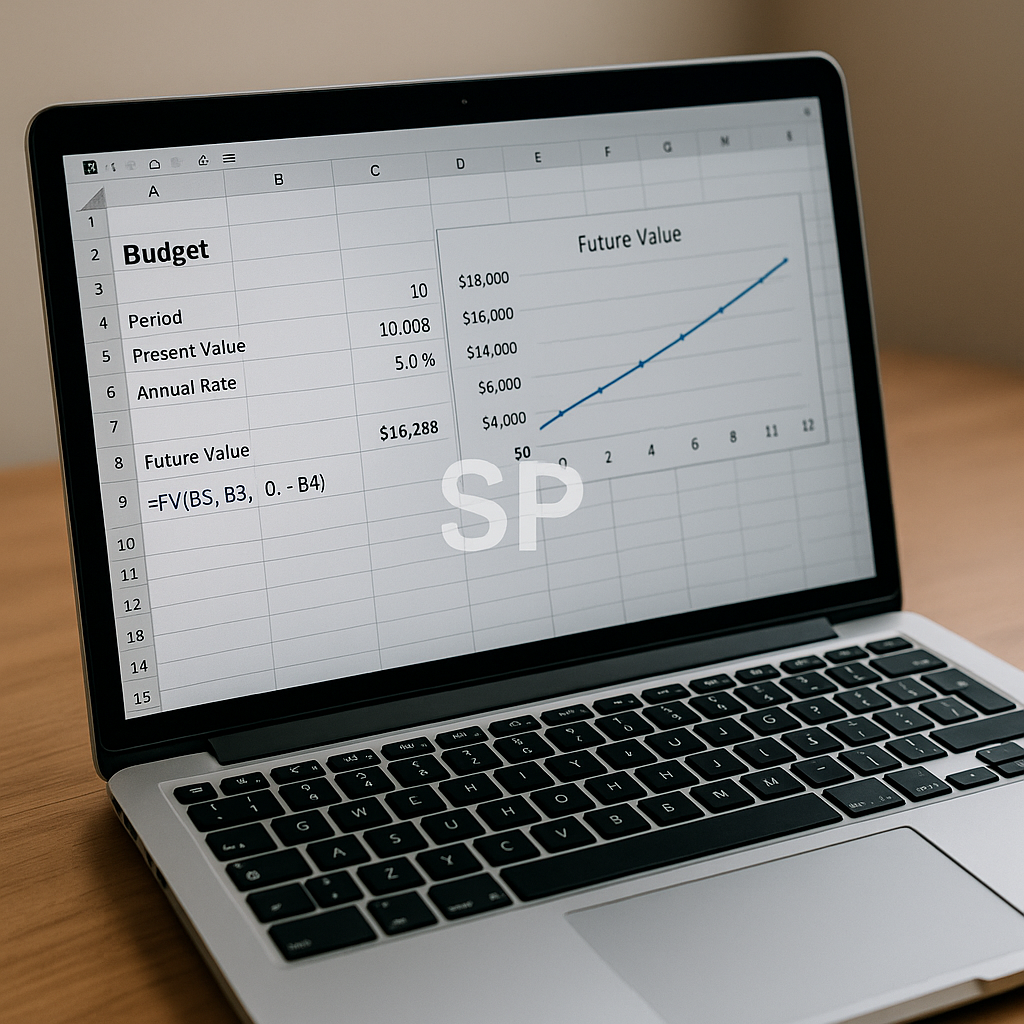
If you’re working with budgets or investments, Excel financial functions are indispensable. PMT calculates monthly loan payments, NPV evaluates investment profitability, and FV projects future savings. These functions turn Excel into a financial planning assistant, making it possible to test scenarios and prepare more accurate reports.
5. Excel Logical Functions for Smarter Analysis
Finally, Excel logical functions help automate decision-making. IF is the most famous example, but combining it with AND, OR, and NOT expands its power. For instance, you can flag overdue invoices automatically or highlight sales targets achieved. Logical formulas form the backbone of conditional formatting and automated reporting systems.
Bonus Tip: Combine Functions for Efficiency
The real magic happens when you combine multiple categories from the Excel functions list. For example, combining IF (logical) with VLOOKUP (lookup) and TODAY (date) can instantly tell you whether a customer’s contract has expired and pull the relevant contact details. This synergy is where Excel becomes a true automation tool.
Once you’ve mastered the basics of the Excel functions list, the next step is learning how to apply these formulas in real-world situations. It’s one thing to know what a function does, but it’s another to combine them strategically for business insights, reporting, and automation.
One of the most common use cases involves Excel lookup functions. For example, sales teams often maintain large product catalogs. By combining VLOOKUP with IFERROR, you can quickly return accurate product prices while avoiding errors when an item isn’t found. INDEX and MATCH are also crucial when working with dynamic tables, as they adapt easily to changes in column order.
Meanwhile, Excel text functions play a critical role in cleaning and preparing data. Consider a mailing list where customer names are inconsistently formatted. By using PROPER to capitalize correctly, TRIM to remove extra spaces, and CONCATENATE (or TEXTJOIN) to merge first and last names, you create a polished database ready for professional use. These small details dramatically improve accuracy in marketing campaigns.
Time-based reporting is another area where Excel date functions excel. HR teams, for example, often calculate employee tenure or retirement eligibility. DATEDIF gives exact years and months of service, while TODAY ensures the calculation is always up to date. Finance departments often rely on EOMONTH to prepare monthly closing reports, ensuring consistency in deadlines and forecasting.
For financial modeling, Excel financial functions are indispensable. PMT helps you plan mortgage payments, NPV and IRR guide investment decisions, and FV projects long-term savings growth. By embedding these functions into templates, companies can simulate different scenarios and support decision-making with data-driven insights. Even individuals benefit from this knowledge when managing personal loans or retirement accounts.
Finally, Excel logical functions form the backbone of intelligent reporting. An IF formula can categorize sales performance into “Above Target” or “Below Target.” Combining AND and OR allows for more nuanced rules, like flagging employees who meet multiple performance criteria. These logical checks automate repetitive tasks, reducing manual review time and minimizing errors.

The real strength of the Excel functions list lies in integration. For instance, you might use a VLOOKUP (lookup) to find a client’s billing date, a TODAY (date) function to calculate overdue days, and an IF (logical) statement to highlight accounts requiring follow-up. Adding a TEXT function ensures the output is formatted in a professional way. By chaining functions together, you turn Excel into a lightweight but powerful automation system.
Mastering these categories—Excel lookup functions, Excel text functions, Excel date functions, Excel financial functions, and Excel logical functions—creates a toolkit that transforms how you work. Whether you’re in finance, marketing, HR, or operations, a well-practiced command of the Excel functions list saves time, reduces stress, and builds confidence in your data analysis.